
Windows mixer settings and sound card setupBack to the main Sound page |
|
| - | |
 |
|
| Left: In my Windows 7 device manager, you can see all 3 sound cards I have installed The M-Audio Midisport Uno is the midi controller I use with my FCB1010's |
|
| - | |
 |
|
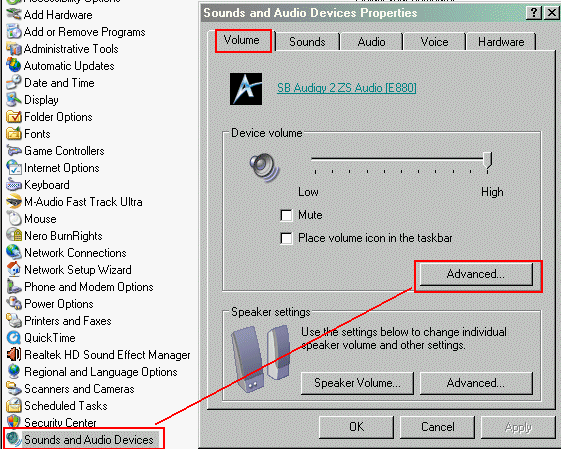
| You can access your windows mixer by going into the windows control panel and then choose Sounds and audio devices. On Win XP, the dialog box shown above will open up Click on the advanced button to open up the windows mixer. |
|
| - | |
 |
|
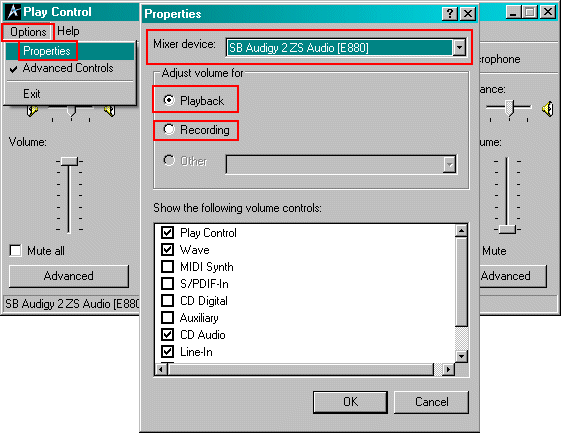
| Open your windows mixer and then choose Options and then Properties The properties dialog box opens up. At the top of the window, you can choose your mixer device. If you have more than one sound card installed, each sound card will have it's own mixer settings. The pull down menu will let you select which soundcard you want to change the properties for. You can then check the Playback or Recording boxes to be able to set the properties for Playback or Recording. Playback and Recording each have their own settings. All of the volume controls that are available for your sound card are listed at the bottom of this window. You have to check the boxes to get each volume control to display in the mixer. In the example above, I have Play Control, Wave , CD Audio, Line-In and microphone checked, Microphone is not showing on the screen shot, it's down below the bottom of the window |
|
| - | |
 |
|
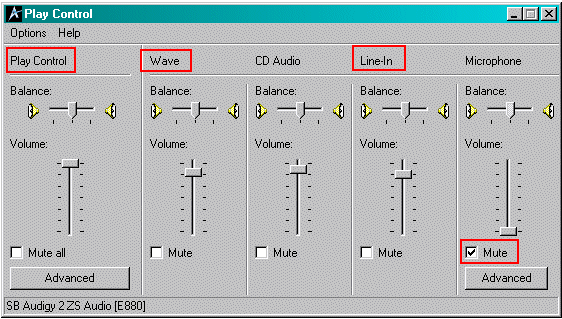
| I checked the Playback button in the Properties window and then hit OK. The window above opens up and displays my playback settings. The only thing you need to Mute is the Microphone. You will get feedback through your audio system if you do not mute Microphone. You can mute any of the devices that you know for sure you do not use. The items that I have to adjust the volume for recording purposes are, Play Control, Wave and Line-In I have set the volume sliders on those items for proper playback levels |
|
| - | |
 |
|
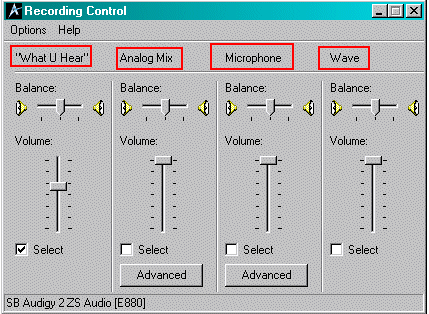
| I then checked the Recording button in the Properties window and then hit OK. The window above opens up and displays my Recording settings. If you are recording using a Microphone, check the microphone box. Whatever your recording source is, check that box. I record "what I hear" quite a bit and so I have checked that box I have set the volume slider for proper recording levels If you use a microphone for recording, you can click on the advanced button and set the boost to +20db if you need more gain |
|
| - | |
|
|
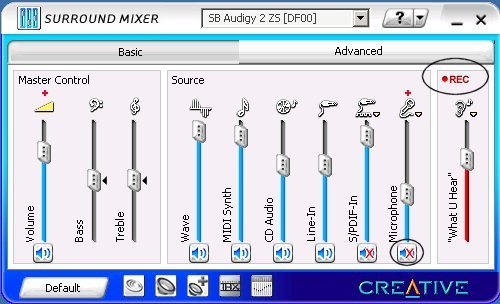
| If you have a SoundBlaster card installed, you can access the windows mixer through your Creative software links. I like to go directly to the windows mixer but just for the heck of it, you can check and see what the Creative mixer window says after making the settings in the windows mixer. The creative mixer shows the same thing as the windows mixer but I prefer to use the windows mixer. Note that the Playback Microphone has a red X at the bottom of the slider which means that it is muted. On the right side of the window is the Recording slider. What you hear has been selected. This makes it easy, what you hear is what will be recorded. |
|
| - | |
Click on the image for a larger image 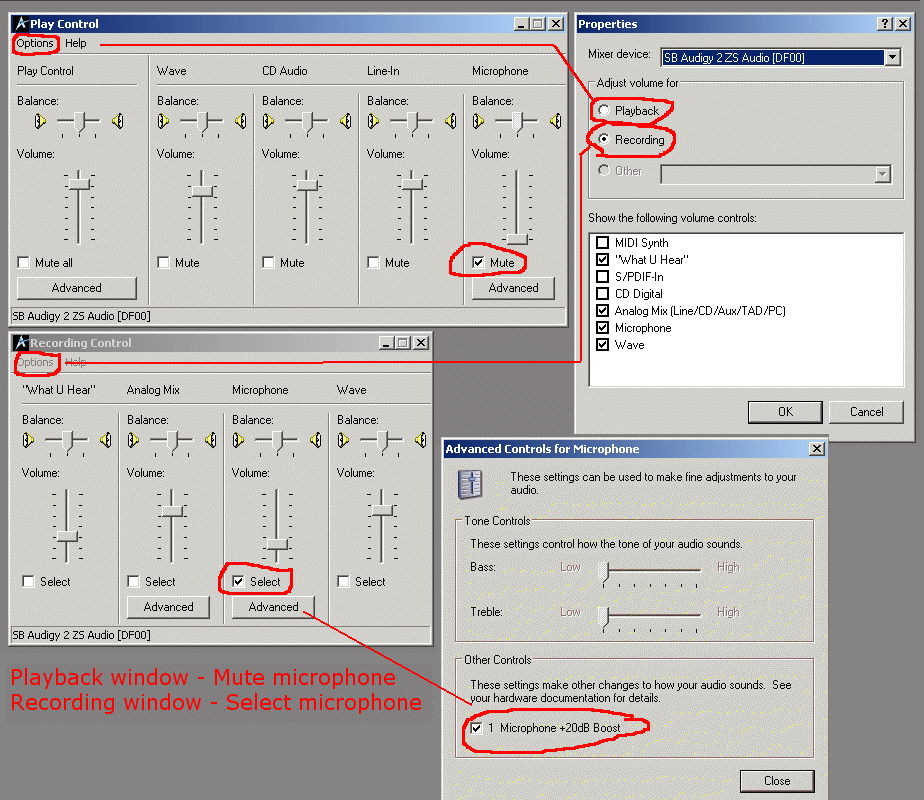 |
|
| Here's another shot of the windows mixer. If you need to boost your microphone level, there's a +20 boost available in many soundcard mixers. |
|
| - | |

|
|
|
Another mixer screen shot This one shows a SB Audigy and a Mia Echo |
|
Enter My Tube Amp Parts Store Here
Mobile users Enter My Tube Amp Parts Store Here
The Tube amp Library of information
Click the link above for Tube amp info, Schematics, Board building information, Projects, Mods, Transformer diagrams, Photo's, Sound clips.
There are hundreds of pages of Tube amp information on my library page.
Please visit my Tube Amplifier Forum
Here's the place you can go to ask tube amplifier questions.
You will find a large community of friendly amp builders at the link above.
Check the huge library of Schematics here
Design your own custom Turret Board or Eyelet board
DIY Layout Creator file analyzer program
DIY Layout Creator file library
Sound clips and tunes of all types
How to email me
|
MEMBER OF PROJECT HONEY POT Spam Harvester Protection Network provided by Unspam |